
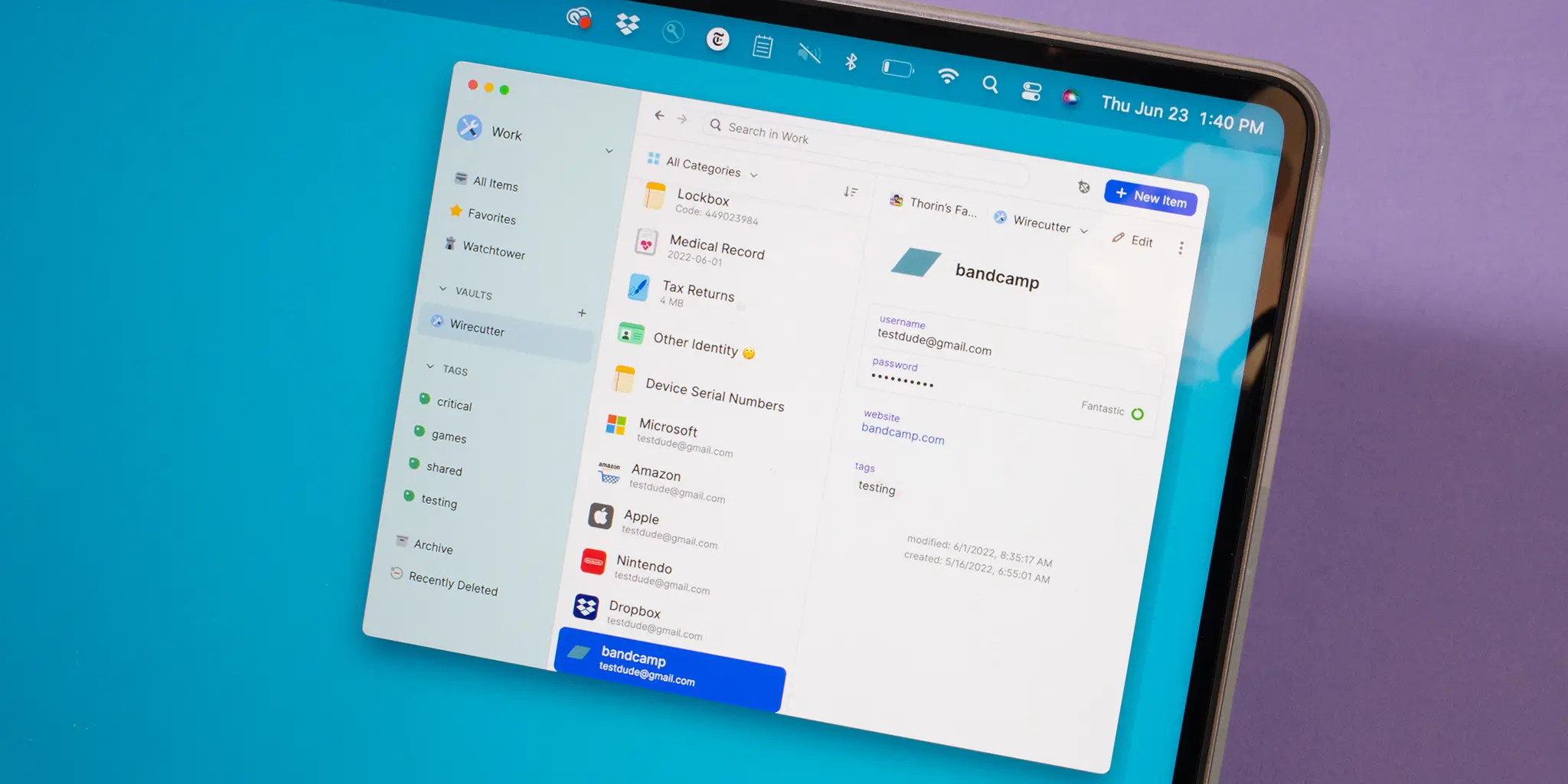
Using the same password for your email, online banking, shopping accounts, and social media can put your digital life at risk. If one website suffers a data breach, criminals may try the stolen credentials on other services. A password manager helps prevent this by creating, storing, and autofilling unique passwords for your accounts.
But which password manager should you choose? In this guide, we compare popular options, including Bitwarden, 1Password, Proton Pass, Dashlane, NordPass, Keeper, and KeePassXC. We look at their free plans, security features, ease of use, privacy options, and value for money.
Which Password Manager Is Best for You?
Your ideal choice depends on your budget, preferred devices, and whether you need family sharing, advanced privacy features, or complete control over where your data is stored.
These are editorial recommendations based on product features, not the results of a hands-on security audit. Check each provider’s current plan details before subscribing.
Best Password Managers Compared: At a Glance
| Password Manager | Best For | Free Option | Main Strength | Potential Drawback |
|---|---|---|---|---|
| Bitwarden | Most users on a budget | Yes | Unlimited passwords and device syncing | Some advanced features require payment |
| Proton Pass | Privacy-conscious users | Yes | Encrypted vault and email aliases | Some advanced tools are paid |
| 1Password | Premium users and families | Free trial may be available | Polished apps and security features | No permanent free personal plan |
| Dashlane | Users wanting extra security tools | Check current offers | Security monitoring and bundled extras | Can cost more than basic alternatives |
| NordPass | Users who value convenience | Limited free option | Simple interface and passkey support | Free-plan restrictions may apply |
| Keeper | Individuals and organizations | Limited free option | Secure storage and access controls | Some monitoring features cost extra |
| KeePassXC | Desktop users who prefer local control | Yes, free software | Local encrypted database | Syncing and sharing require extra setup |
The most important distinction is not simply which product has the longest feature list. It is whether you can use it consistently across your devices, recover access safely, and protect your vault with a strong master password and multifactor authentication.
1. Bitwarden: Best Free Password Manager
Why choose Bitwarden?
Bitwarden is one of the strongest options for people who want a password manager without committing to a paid subscription. Its free personal plan supports unlimited passwords and syncing across unlimited devices, making it useful for people who switch between phones, tablets, and computers.
Bitwarden is open source and offers apps for major desktop and mobile platforms, browser extensions, password generation, and secure vault storage. Paid plans add features such as integrated authentication tools, emergency access, encrypted file attachments, and additional security reports.
Pricing: Free plan available. Bitwarden Premium is listed at US$19.80 per year, billed annually, on its official pricing page. Prices and taxes may vary by location.
- Useful free plan
- Open-source software
- Cross-device synchronization
- Password generator and autofill
- Interface may feel less polished to some users
- Advanced features are plan-dependent
- Requires protecting your master password carefully
Best for: Students, freelancers, households, and anyone looking for a capable password manager at little or no cost.
View Bitwarden Plans2. Proton Pass: Best for Privacy and Email Aliases
Why choose Proton Pass?
Proton Pass is designed for people who want to manage passwords while reducing how much personal information they expose online. In addition to passwords and passkeys, it supports secure notes and hide-my-email aliases that can help keep your primary email address private when signing up for websites.
Its free plan includes unlimited logins and devices, password generation, apps for major platforms, and a limited number of email aliases. Paid plans add features such as unlimited aliases, secure sharing, an integrated authenticator, file attachments, and dark web monitoring, depending on the subscription.
Pricing: A free plan is available. Paid subscription prices and promotions vary, so check the official pricing page for the current amount.
- Unlimited logins and devices on the free plan
- Useful email-alias functionality
- Open-source client applications
- Strong focus on encrypted privacy
- Some advanced features require a subscription
- May be more than needed for basic password storage
- Features differ across plans
Best for: Privacy-conscious users, people who frequently register for online services, and existing Proton Mail or Proton ecosystem users.
View Proton Pass Pricing3. 1Password: Best Premium Password Manager
Why choose 1Password?
1Password focuses on a polished user experience, organized vaults, secure sharing, and tools that help users identify risky credentials. Its Watchtower feature can highlight security issues such as weak passwords and accounts associated with known breaches.
One notable feature is Travel Mode, which can help travelers control which vaults are available on their devices when preparing for a trip. Family plans also make it easier for household members to share selected information while keeping personal vaults separate.
Pricing: Paid subscription. A free trial may be offered; check the official website for current individual and family rates.
- Polished apps and intuitive organization
- Security monitoring features
- Family vaults and secure sharing
- Useful tools for frequent travelers
- No permanent free personal plan
- Subscription required after any trial
- Some features may be unnecessary for casual users
Best for: People who value ease of use, families managing shared accounts, and professionals who want a premium experience.
Explore 1Password4. Dashlane: Best for Extra Security Features
Why choose Dashlane?
Dashlane combines password storage and autofill with additional account-protection features. Depending on the plan, these may include dark web monitoring, secure sharing, phishing alerts, and a bundled VPN.
These extras can be convenient if you prefer managing several security functions through one subscription. However, a bundled feature is not automatically the best option for everyone. Compare the total cost with a password manager and separate security services before deciding.
Pricing: Paid personal plans are available. Check the current official pricing page for the latest plans, trial terms, and regional availability.
- Convenient password autofill
- Security monitoring features
- Secure password sharing
- Additional tools in eligible plans
- May be more expensive than basic alternatives
- Several extras require paid plans
- Bundled features may overlap with other subscriptions
Best for: Users who want a convenient password manager with additional security tools in one subscription.
Compare Dashlane Plans5. NordPass: Best for Everyday Convenience
Why choose NordPass?
NordPass is a password manager for people who want a straightforward way to save and autofill credentials across their devices. It supports modern authentication features, including passkeys, and uses XChaCha20 encryption for vault data.
Paid plans may include features such as secure sharing, password health checks, and breach monitoring. Free-plan limitations can affect how many devices can be active at the same time, so check the current terms before choosing it as your only password manager.
Pricing: Free and paid options may be available. Promotional introductory rates and renewal prices can differ considerably.
- Simple interface
- Passkey support
- Apps for common platforms
- Security checks on eligible plans
- Free-plan device restrictions may apply
- Premium extras depend on the plan
- Introductory prices may rise at renewal
Best for: People who value a simple setup and want a convenient way to manage credentials on their daily devices.
Check NordPass Pricing6. Keeper: Best for Security-Focused Users
Why choose Keeper?
Keeper offers encrypted password storage, secure sharing, multifactor authentication support, and additional security tools. Its broader product range includes features designed for businesses that need to manage employee access and protect sensitive organizational information.
Depending on the plan, individuals may be able to add breach monitoring, secure file storage, or emergency-access features. Organizations should also evaluate administration, reporting, and access-control requirements before choosing a business subscription.
Pricing: Free and paid options vary by plan and region. Some monitoring and storage features may cost extra.
- Secure password and information storage
- Multifactor authentication support
- Sharing features
- Options for individuals and businesses
- Advanced tools may increase the price
- Free access can be restricted
- Some users may not need its broader feature set
Best for: People who want extra security options and businesses that need structured credential management.
Explore Keeper Plans7. KeePassXC: Best Free Option for Local Storage
Why choose KeePassXC?
KeePassXC is a free, open-source password manager for desktop users who prefer to keep their credentials in an encrypted database they control. Unlike cloud-first services, it does not require a provider account to host your vault on its own servers.
You are responsible for keeping the database file safe and deciding how to back it up or synchronize it between devices. Advanced users can place the encrypted file in a cloud storage service they trust, but they must understand the risks and avoid creating conflicting database copies.
Pricing: Free and open source.
- No subscription required
- Local encrypted database
- Open-source desktop software
- Greater control over storage and backups
- Synchronization requires setup
- Less convenient for some mobile workflows
- You must manage backups yourself
Best for: Technically confident users who prefer local storage and do not mind managing synchronization and recovery themselves.
Download KeePassXCFree vs. Paid Password Managers: Is Premium Worth It?
A free password manager can be enough for many individuals. If you mainly need unique passwords, secure storage, password generation, and access across your devices, Bitwarden or Proton Pass can cover the basics without a monthly payment.
A paid plan may be worthwhile if you need:
- Family sharing: Share selected logins with household members without sending passwords through chat.
- Security reports: Identify weak, reused, or compromised passwords.
- Emergency access: Create a controlled way for a trusted person to request access if you cannot manage your account.
- Encrypted attachments: Store sensitive documents alongside credentials, if supported by your plan.
- Advanced organization: Manage shared vaults, access permissions, or company credentials.
- Additional privacy tools: Use email aliases or monitoring features where available.
How to Choose the Right Password Manager
1. Check device compatibility
Make sure the password manager works with your computer, phone, and preferred browsers. If you use Windows at work and an iPhone or Android device personally, verify that your vault can synchronize across both environments.
2. Look for strong encryption and a clear security model
Reputable password managers encrypt stored information and use security designs intended to prevent the provider from reading your vault contents. Look for clear documentation about encryption, independent security assessments, vulnerability reporting, and how account recovery works.
A zero-knowledge design is useful, but it does not make every risk disappear. Malware on an unlocked device, phishing, a compromised email account, or a weak master password can still create serious problems.
3. Enable multifactor authentication
Use an additional verification method to protect your password manager account. An authenticator app or a hardware security key can provide stronger protection than relying on a password alone. Keep recovery codes somewhere safe and separate from your everyday login process.
4. Check password import and export options
Moving from a browser or another password manager should be straightforward. Before importing credentials, check how to transfer them securely and how to remove any temporary unencrypted export files afterward.
5. Understand recovery before you need it
Some encrypted vaults cannot be restored by the provider if you lose the credentials or recovery methods required to unlock them. Read the recovery instructions, configure available emergency access, and store recovery information safely.
6. Decide whether you need cloud syncing
Cloud synchronization is convenient if you regularly use multiple devices. Local storage can offer more control, but it also makes backups and device transfers your responsibility. Neither approach eliminates the need for strong access controls and secure recovery.
Password Manager Security Checklist
Use this interactive checklist to evaluate whether your password manager setup covers the most important basics.
Important: This checklist is a basic self-assessment, not a security audit or a guarantee that your accounts are safe.
How to Switch to a Password Manager Safely
- Choose your manager. Compare the free plan, device compatibility, recovery process, and security features.
- Download it from the official source. Avoid unofficial installers, sponsored lookalike downloads, and unexpected links in emails.
- Create a strong master password. Use a long, unique passphrase that you do not use for another account.
- Import your saved credentials carefully. If you export passwords from a browser, remember that the export file may be readable as plain text.
- Secure your most important accounts first. Start with your primary email, financial accounts, cloud storage, and social media.
- Replace reused passwords. Generate a different, random password for every important account.
- Enable multifactor authentication. Protect both your password manager and the accounts that support it.
- Delete temporary exports securely. Remove unencrypted password files from downloads, desktops, cloud folders, and recycle bins when they are no longer needed.
- Test your recovery process. Confirm that you can unlock your vault and access the information needed to restore it.
Are Password Managers Safer Than Saving Passwords in a Browser?
Built-in password managers in browsers and operating systems can be a reasonable choice, especially when they synchronize securely and are protected by strong device authentication. A dedicated password manager may offer more flexible sharing, cross-browser support, security reporting, and management across different platforms.
The right choice depends on your habits and requirements. A well-protected built-in password manager is generally better than reusing passwords or storing them in a spreadsheet. If you use several browsers, share credentials with family members, or need additional privacy tools, a dedicated service may be more convenient.
What About Passkeys?
Passkeys are an alternative to traditional passwords. They use cryptographic credentials associated with a website or app and can be unlocked using methods such as your device PIN, fingerprint, or facial recognition. They are designed to resist common phishing attacks because authentication is tied to the legitimate website or service.
Many password managers can store and synchronize passkeys, allowing you to use them across supported devices. However, support varies by website, device, browser, and provider. Keep your account recovery options up to date even if you use passkeys for most logins.
Frequently Asked Questions
What is the best password manager overall?
There is no single winner for everyone. Bitwarden is an excellent starting point for users who want a capable free plan. Proton Pass is appealing for privacy and email aliases, while 1Password is a strong premium option for people who value polished apps and family features.
What is the best completely free password manager?
Bitwarden and Proton Pass are strong choices because their free plans support unlimited passwords and multiple devices. KeePassXC is another free option for desktop users who prefer a locally stored encrypted database, although synchronization requires additional setup.
Can password managers be hacked?
No digital service is risk-free. A provider could experience a security incident, and attackers may target users through phishing, malware, stolen devices, or weak master passwords. Choose a reputable provider, use multifactor authentication, keep your devices updated, and follow security alerts.
Should I store my banking passwords in a password manager?
A reputable password manager can help protect banking credentials by creating and storing unique passwords. Enable multifactor authentication when available, secure your device, and never share your master password or authentication codes with anyone.
What happens if I forget my master password?
Recovery depends on the product and how your account was configured. Some services offer emergency access or account recovery options, while some encrypted vaults cannot be restored without the required credentials or recovery information. Read the recovery documentation before relying on a service.
Is it safe to use a password manager on my phone?
Yes, provided you use a reputable app, download it from the official app store or provider, keep your phone updated, enable device locking, and protect the vault with appropriate authentication. Avoid leaving your phone unlocked and unattended.
Should I use the same password manager for work and personal accounts?
It depends on your employer’s security policy. Businesses may require an approved company-managed vault. Keep personal and work credentials separated according to those policies, and never transfer confidential company passwords into a personal account without authorization.
Are password managers worth paying for?
A paid plan can be worthwhile if you need family sharing, advanced reports, secure attachments, emergency access, or other premium features. If you mainly need password generation and synchronization, a free plan may be enough.
Final Verdict: Which Password Manager Should You Choose?
For most people who want to improve their online security without adding another recurring expense, Bitwarden is a sensible place to start. Its free plan covers the core task of managing unique passwords across devices. Proton Pass is another compelling free option, particularly if email aliases and privacy features matter to you.
If you prefer a premium experience with convenient organization and sharing, compare 1Password. Consider Dashlane if its additional security features justify the cost, NordPass if you prefer its interface and workflow, or Keeper if you need more advanced security and management tools. Choose KeePassXC if you want local storage and are comfortable managing backups yourself.
Whichever product you choose, the most important step is to start using unique passwords, secure your vault with multifactor authentication, and prepare a safe recovery plan. A password manager is most effective when it becomes part of your everyday security routine.